
Dominant Colors Extractor
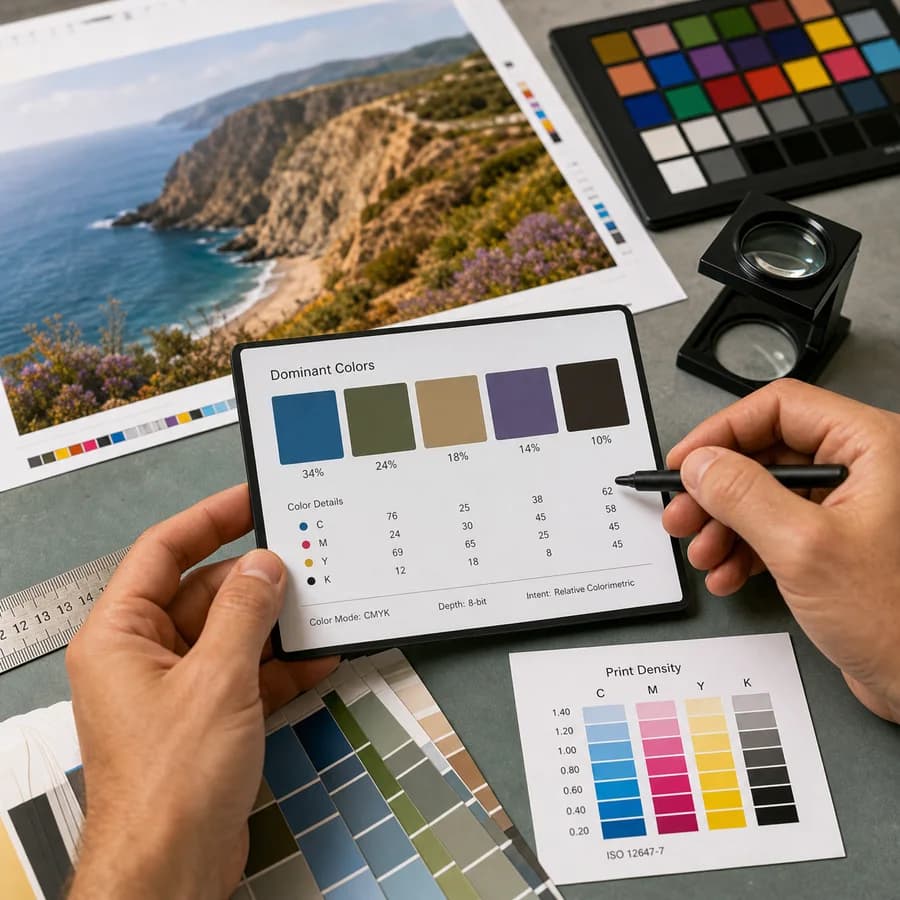
Dominant Colors Extractor finds the main colors in an image and turns them into ranked swatches directly in your browser.
Use it to extract dominant colors from a photo, screenshot, logo, or moodboard and copy HEX, RGB, HSL, and percentage values for design or CSS work.
Supported image types
Color extraction uses browser image decoding and canvas pixels. Files stay local; support for AVIF, WebP, and animated formats depends on the current browser.
Choose an image
JPG, PNG, WebP, GIF, BMP, and AVIF files up to 50 MB.
Dominant colors
Ranked swatches with HEX, RGB, HSL, and percentages.
Dominant Image Color Extraction Guide
What dominant colors from an image mean
Dominant color extraction groups visually similar pixels and ranks the groups by how much of the sampled image they occupy. The result is a practical palette: the colors that explain most of the image, not every exact pixel value in the file.
This tool reports each swatch as HEX, RGB, HSL, and an approximate percentage. The percentage is based on the browser-local analysis sample, so it is best for design decisions, CSS tokens, brand checks, moodboards, and visual audits rather than laboratory color measurement.
- Use HEX when copying into CSS, design tools, or documentation.
- Use RGB when matching screen color values or working with canvas and image APIs.
- Use HSL when you want to reason about hue, saturation, and lightness.
- Use percentages to see which colors dominate the image versus which colors are accents.
How the browser-local extraction works
The selected image is decoded by your browser, drawn to a bounded canvas, and sampled with canvas pixel APIs. The file is not uploaded to a server for extraction. Large images are downsampled before analysis so the clustering stays responsive on laptops and phones.
Fully transparent pixels are ignored. Semitransparent pixels are read as their stored RGB values when the browser exposes them through canvas image data. Animated GIFs and animated WebP files are analyzed from the frame the browser decodes for the canvas draw operation.
- Supported formats depend on the browser, commonly JPG, PNG, WebP, GIF, BMP, and AVIF.
- The original file remains unchanged on your device.
- The result is deterministic for the same browser-decoded pixels and selected color count.
- The tool counts a successful use only when at least one color swatch is produced.
Choosing the number of swatches
A smaller palette is easier to use for brand notes, UI themes, and quick visual summaries. A larger palette can reveal accent colors, shadows, highlights, and small product details that disappear when the palette is too compact.
For photos, start with eight colors. For simple logos, screenshots, or flat artwork, four to six colors may be clearer. For detailed illustrations or product photos, ten to twelve colors can better separate related tones.
- Use fewer swatches for simple assets and brand checks.
- Use more swatches when the image has several materials, shadows, or accent colors.
- Treat near-duplicate colors as evidence that the image has gradual tones or compression noise.
- Copy the full palette when you need a traceable note for a design handoff.
Limits and color accuracy notes
Browser canvas APIs expose decoded screen-oriented pixel values. They may not preserve every original color-management detail from the source file, especially when an image has an embedded ICC profile, HDR data, unusual bit depth, or browser-specific decoding behavior.
For production print, product color approval, or calibrated proofing, use this extractor as a fast preview and verify final colors in the color-managed application and device workflow that will produce the finished asset.
- Use ICC Profile Viewer when the embedded color profile itself matters.
- Use CMYK vs RGB Detector when you need broad file color mode rather than visible sampled colors.
- Avoid treating sampled percentages as exact measurements for files with transparency, gradients, or heavy compression.
- Keep the original image when you need archival or legally exact color evidence.
Compare Dominant Colors Extractor
Review this tool beside related online utilities, dedicated apps, and adjacent workflows.
Compare Dominant Colors Extractor with other toolsOpen Source Alternatives
Compare this focused browser workflow with proprietary software and online tools that solve similar jobs.
View Dominant Colors Extractor open source alternatives