
Favicon App Icon Pack Generator
Favicon App Icon Pack Generator turns one source image into deployable favicon, Apple Touch, and PWA app icon files without uploading it.
Use this favicon generator and app icon generator to create favicon.ico, correctly sized web app manifest icons, favicon HTML tags, clear filenames, copy-ready snippets, and a ZIP download.
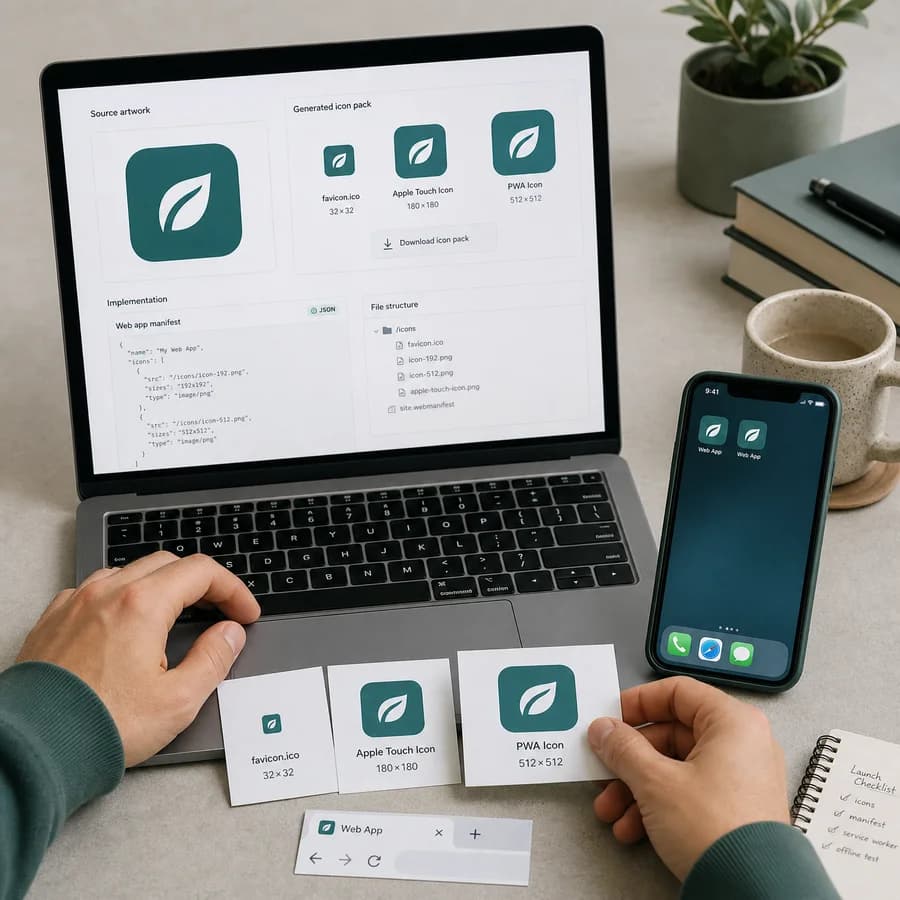
Choose one source image
Drop a PNG, JPEG, WebP, or practical SVG. A square 512 x 512 px source with transparent margins creates the complete web manifest icon pack and the cleanest small favicons.
The image is decoded and resized locally with Canvas. Invalid files, decode failures, too-small images, and unsupported SVGs do not consume a successful use.
Snippet settings
No icon pack yet
Select a source image to generate deployable favicon files, Apple Touch icon, correctly sized web manifest icons, manifest JSON, and HTML link tags.
Generated pack contents
The pack includes favicon.ico, PNG favicon sizes, Apple Touch icon, web manifest PWA icon sizes from 72 px through 512 px, a maskable 512 px icon, Microsoft tile image, manifest.webmanifest, browserconfig.xml, and favicon HTML tags.
Favicon and App Icon Pack Guide
What the generator creates
The tool decodes the selected PNG, JPEG, WebP, or practical SVG in the browser, center-crops it to a square, and renders the icon sizes with Canvas. It creates favicon.ico with 16, 32, and 48 px PNG entries, separate PNG favicons, apple-touch-icon.png, web manifest icons at 72, 96, 128, 144, 152, 192, 384, and 512 px, a maskable 512 px icon, mstile-150x150.png, manifest.webmanifest, browserconfig.xml, and a text file with HTML tags.
The output is designed for a normal website or PWA public folder. Download the ZIP, place the files at the path used in the snippet settings, then paste the generated link and meta tags into the document head.
- favicon.ico is included for classic browser and desktop shortcut compatibility.
- favicon-16x16.png, favicon-32x32.png, and favicon-48x48.png are included for explicit PNG favicon references.
- apple-touch-icon.png is generated at 180 x 180 px for iOS home-screen use.
- android-chrome-72x72.png through android-chrome-512x512.png are listed in the web app manifest with purpose any.
- maskable-icon-512x512.png is listed with purpose maskable when maskable metadata is enabled.
- mstile-150x150.png is referenced by browserconfig.xml for legacy Microsoft tile support.
Source image quality
Small favicons are unforgiving. Start with a simple square source, strong silhouette, clear contrast, and enough transparent or solid padding that the mark still reads at 16 x 16 px.
A 512 x 512 px or larger source gives the generator enough pixels for the largest PWA icon while still downscaling to favicon sizes. Non-square images are accepted, but the tool center-crops them, so important artwork near an edge can be removed.
- Use simple artwork instead of detailed screenshots or full photos.
- Keep a transparent or solid-color margin around the main mark.
- Check 16 px and 32 px outputs before shipping because tiny details can blur.
- Use a transparent PNG when the favicon should sit cleanly on different browser themes.
Maskable icons and safe zones
Maskable PWA icons let platforms crop the icon into circles, rounded rectangles, squircles, and other platform masks. The generated maskable icon adds padding over the selected background color so the central artwork is less likely to be clipped.
The manifest marks the normal 72, 96, 128, 144, 152, 192, 384, and 512 px files as purpose any and the padded 512 px file as purpose maskable. Keep critical shapes, letters, and logos inside the center safe area before relying on maskable metadata.
- Rounded platform masks can hide corners and outer edges.
- Letterforms and thin strokes need more padding than abstract shapes.
- Use the background color setting to match the intended app launch surface.
- Keep manifest icon paths in sync with where the files are actually deployed.
Browser-local privacy model and limits
The selected image is processed locally with browser APIs. The tool does not need a server route, remote image proxy, or upload endpoint to generate the icon files and snippets.
SVG support depends on whether the browser can decode the SVG safely into an image. SVGs with script, event handlers, external resource links, unsupported fonts, or complex filters may be rejected or fail to decode before any successful use is counted.
- Invalid files, empty files, decode failures, too-small sources, and unsupported SVGs do not consume a use.
- A successful use is recorded only after icon blobs are generated and access allows the result.
- The ZIP is stored only as an in-browser Blob for download.
- The generator creates icon files and snippets; it does not audit an existing website or check live deployment.