
GIF/WebP/APNG Frame Extractor
GIF/WebP/APNG Frame Extractor turns an animated image into individual PNG frame previews without uploading the file.
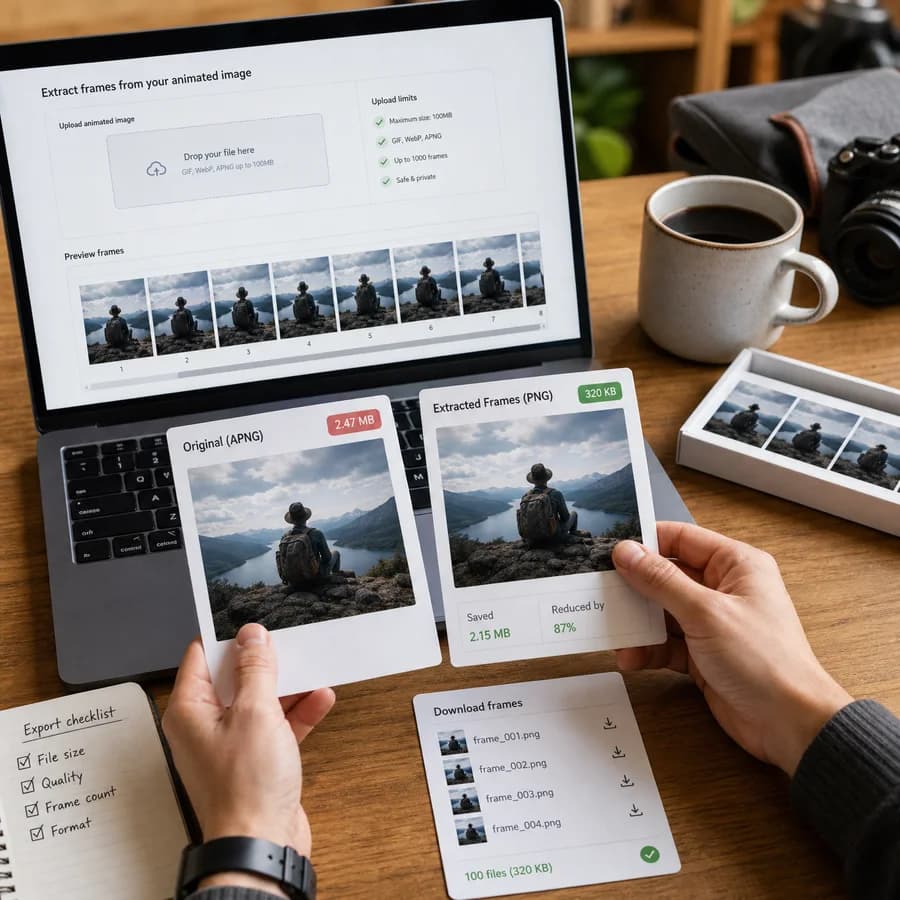
Drop in a GIF, animated WebP, or APNG to see decoded frames, per-frame timing, canvas dimensions, total duration, and download links for inspection or reuse.
Choose an animated image
GIF, animated WebP, APNG, or PNG files up to 100 MB.
Frames are decoded locally in the browser. Static files, unsupported files, and decode errors do not consume a tool use.
Extracted frames appear here
Upload an animated GIF, WebP, or APNG to get PNG frame previews, download links, timing, dimensions, and a copy-ready report.
Extract Animated Image Frames Locally
What the extractor reports
The tool treats frame extraction as successful only when at least one frame is decoded and rendered into a PNG preview. Successful results show the detected format, pixel dimensions, frame count, total duration, extracted frame count, and a preview grid with download actions.
The copy button creates a structured text report with file size, format, frame timing, frame dimensions, PNG output names, warnings, and parser signals. That makes the result useful for QA tickets, animation handoff notes, and debugging motion assets.
- Static files are explained as normal non-consuming outcomes.
- Unsupported files and decode errors do not count as successful uses.
- Very large animations are capped to keep the browser tab responsive.
- Each extracted frame is exported as a browser-generated PNG link.
Supported animation formats
The extractor supports GIF, animated WebP, and APNG or animated PNG files. It uses browser ImageDecoder when available to decode actual visual frames, then uses lightweight parser checks to explain the detected animation type and timing metadata.
GIF timing comes from Graphic Control Extension delay values, animated WebP uses RIFF animation chunks such as ANIM and ANMF, and APNG uses acTL and fcTL chunks for animation control and frame timing.
- GIF files are checked for image descriptor frames and per-frame delays.
- WebP files are checked for VP8X animation flags and ANMF frame chunks.
- APNG files are checked for acTL and fcTL chunks before extraction.
- AVIF and video containers are intentionally outside this tool's scope.
Privacy and usage counting
The workflow runs in the browser with File, ArrayBuffer, ImageDecoder, canvas, and object URLs. Source files and generated PNG frame previews are not uploaded by the tool UI.
A successful use is recorded only after at least one PNG frame is actually produced. Choosing a static image, trying an unsupported file, or hitting a parser or decoder error does not consume the free tool use.
- Generated object URLs are cleared when the file is reset or replaced.
- The page reports browser support issues instead of pretending every decoder can extract every format.
- Use the frame counter tool when you only need counts and timing without PNG extraction.
- Use video-specific tools for MOV, MP4, WebM, and other video containers.
How to use extracted frames
Start by checking frame count and total duration, then review individual delays. A high frame count can explain large file size, slow preview behavior, or poor upload performance in social and design tools.
Download individual PNG frames when you need a still asset, thumbnail, bug reproduction frame, or before-and-after comparison. Copy the full report when you need to document timing and dimensions without attaching every extracted image.
- Use timestamps to locate the frame that matches a visual bug.
- Use PNG frame sizes to estimate how heavy extracted still assets will be.
- Use warnings to spot malformed timing or partial parser coverage.
- Regenerate or optimize the source animation when many frames have unnecessary repeated content.