
Image Format Converter
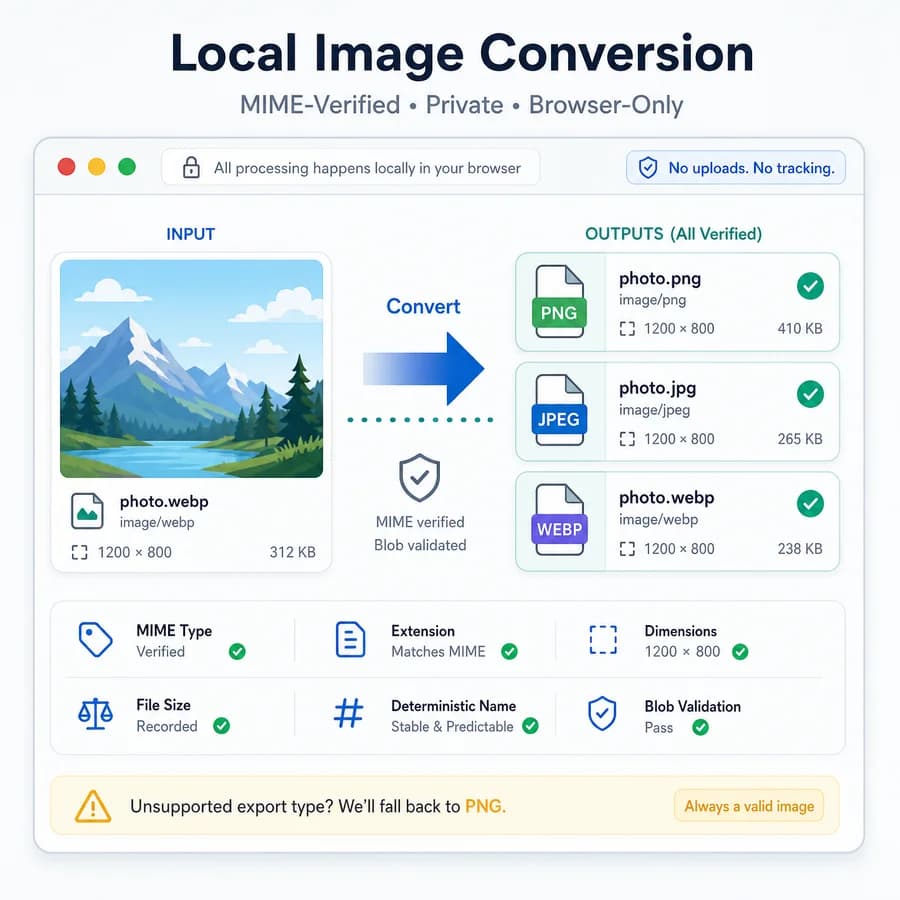
Image Format Converter turns browser-readable images into clean PNG, JPG, WebP, or AVIF files without uploading the original image.
Choose an output format and optional quality setting, then download a verified Blob with a predictable filename and matching extension.
Choose an image
PNG, JPG, JPEG, JFIF, PJPEG, PJP, WebP, AVIF, GIF, and BMP images up to 50 MB.
Lossless browser canvas output for screenshots, UI graphics, and transparency.
Conversion result
MIME, extension, dimensions, file size, filename, and Blob checks.
No image selected
Choose a browser-readable image to create a verified output file.
Supported browser formats
Source images
Output checks
- MIME type matches the selected encoder.
- Download extension matches the output MIME.
- Decoded output dimensions match the source pixels.
- Blob generation succeeds with a nonzero file size.
Convert and verify image files locally
Best formats to choose
Use PNG when you need a lossless output, transparent pixels, UI graphics, screenshots, or a dependable fallback format. Use JPG for photos when transparency is not needed and smaller lossy files matter more than preserving every pixel exactly.
Use WebP when you want modern web compression with broad browser support, and use AVIF only when the current browser confirms that it can encode that output MIME type. The converter disables or labels unsupported formats instead of pretending every browser can create every format.
- PNG output can preserve alpha and use the .png extension with image/png MIME.
- JPG output can flatten transparency over a selected matte color and use image/jpeg MIME with .jpg extension.
- WebP output exposes quality when supported and verify image/webp after Blob creation.
- AVIF output can be feature-detected at runtime and verify image/avif before download.
Local conversion workflow
Decode the selected image with browser-native image decoding, draw it to a canvas or OffscreenCanvas, then export with the requested MIME type. Keep the workflow browser-local so the page can clearly state that the image file is not uploaded for conversion.
After export, show source format, target format, width, height, original size, converted size, size difference, and the exact download filename. These facts are more reliable for this tool than subjective before-and-after quality claims.
- Accept common browser-decodable raster inputs such as PNG, JPG, WebP, AVIF, GIF still preview, and BMP when supported by the browser.
- Keep original pixel dimensions by default, with later reuse hooks for resize-aware converter pages.
- Use a deterministic filename pattern such as original-name.converted.webp or original-name.converted.jpg.
- Create object URLs only for previews/downloads and revoke them when files change.
Validation rules
The core validation treats a conversion as successful only when Blob generation succeeds and the output matches the requested format contract. Canvas export can fall back to PNG when a requested type is unsupported, so the tool must check the resulting Blob MIME type instead of trusting the requested MIME string.
For automated tests, avoid visual similarity thresholds. Validate output MIME, extension, dimensions, nonzero Blob size, expected filename, and successful image re-decode of the generated Blob.
- Fail or warn when requested image/webp or image/avif returns image/png.
- Confirm width and height after re-decoding the generated Blob.
- Confirm JPG outputs have no alpha-dependent promise and document matte flattening.
- Check that download extension and MIME agree before enabling the download button.
Privacy and limitations
Because the tool re-encodes pixels in the browser, it does not promise metadata preservation. EXIF, GPS, ICC, XMP, and other metadata may be omitted or changed by browser canvas export, which is useful for clean sharing but not suitable for archival conversion that must preserve profiles and tags.
Animated inputs can be handled carefully. A general canvas-based converter usually exports a still image from the decoded frame, so animation-preserving conversion can be reserved for a separate specialized tool.
- State that conversion happens locally in the browser.
- Do not claim professional color-managed conversion unless the implementation explicitly supports it.
- Warn that animated GIF, WebP, AVIF, or APNG files may export as a still image in this general converter.
- Route ICO, favicon packs, compression targets, and metadata removal to existing specialized tools where appropriate.
Compare Image Format Converter
Review this tool beside related online utilities, dedicated apps, and adjacent workflows.
Compare Image Format Converter with other toolsOpen Source Alternatives
Compare this focused browser workflow with proprietary software and online tools that solve similar jobs.
View Image Format Converter open source alternatives