
Image to ICO Converter
Image to ICO Converter creates a single .ico file from one source image without uploading your file to a server.
Use this PNG to ICO, JPG to ICO, WebP to ICO, SVG to ICO, or favicon ICO converter to choose sizes, preview each entry, and download one valid ICO file.
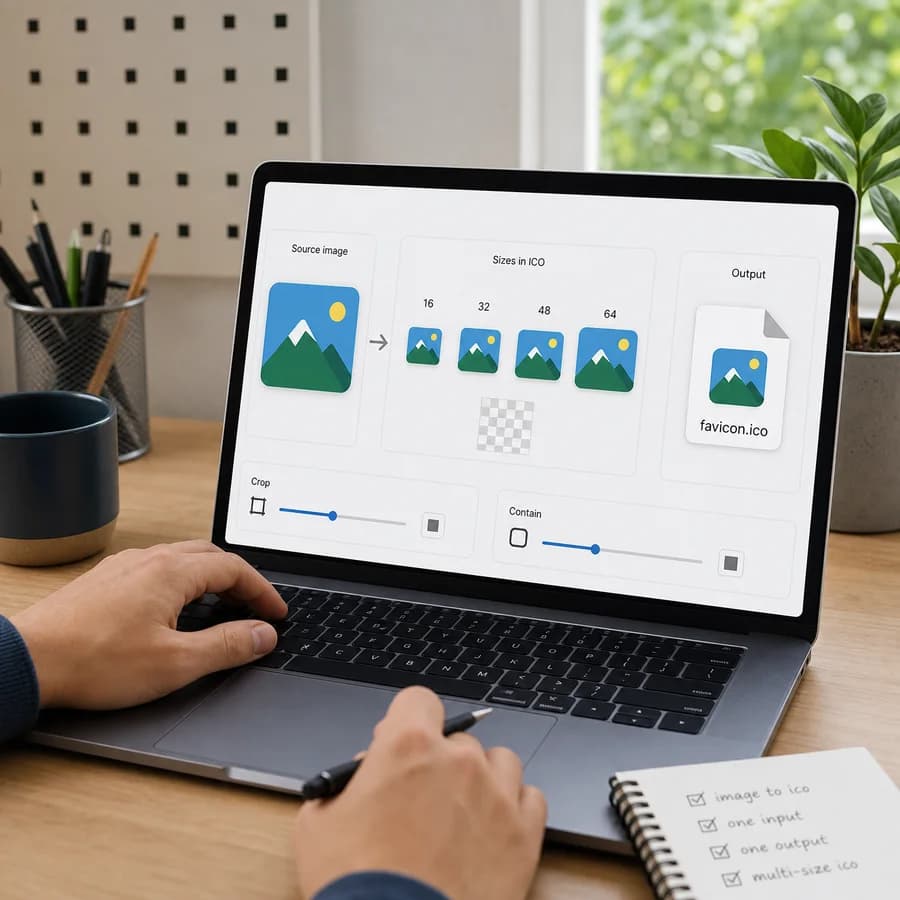
Choose one image
Drop a PNG, JPEG, WebP, SVG, or GIF. The converter renders the selected sizes locally and downloads one multi-size ICO file.
Invalid files, unsafe SVGs, decode failures, and source images smaller than the largest selected size do not consume a use.
ICO settings
Embedded sizes
No ICO file yet
Select one source image to create a downloadable ICO with the selected embedded sizes and preview each generated icon before saving.
Supported ICO input
This converter accepts common browser-readable image files and writes a real ICO container with PNG payload entries. GIF input uses the still frame that the browser decodes.
Convert One Image to One ICO File
What the converter creates
The tool outputs one real ICO binary, not a zip archive, app icon pack, manifest, or folder of separate PNG files. Each selected size is rendered from the same uploaded image and embedded as a PNG payload entry inside the final .ico file.
Default selected sizes are 16, 32, 48, and 256 px because those cover common favicon.ico and Windows icon needs. Optional sizes include 24, 64, and 128 px for toolbar, desktop, and high-DPI workflows.
- The 256 px entry is written with the ICO directory size byte set to zero, as required by the ICO container format.
- The filename is normalized to a safe .ico download name.
- The result summary includes source dimensions, selected sizes, fit mode, background setting, and final byte size.
- Copy-all includes every visible result label in one clipboard action.
Input and browser-local decoding
The converter accepts PNG, JPEG/JPG, WebP, SVG when it can be safely decoded as an image, and GIF when the browser can decode a still first frame. All decoding, resizing, preview rendering, and ICO assembly happen locally with browser image and canvas APIs.
Unsafe SVG content such as script, event handlers, or external HTTP resources is rejected before browser decoding. Unsupported files, empty files, decode failures, unsafe SVGs, and too-small source images stop before a successful use is recorded.
- Use a source image at least as large as the largest selected ICO size.
- A 512 x 512 px or larger square source usually produces sharper 256 px and small favicon entries.
- GIF input uses the still frame decoded by the browser, not an animated ICO.
- No upload route or server-side converter is added for this tool.
Crop, contain, transparency, and matte controls
Square center-crop mode fills each ICO entry and is useful when the important artwork is centered. Contain and pad mode keeps the whole source visible inside each square entry and adds transparent or colored padding around non-square images.
Transparent PNG, WebP, SVG, and GIF sources can keep transparent pixels when the transparent background option is enabled. Turn that option off to flatten transparent areas and padding onto the chosen background color.
- Use crop mode for centered logos and marks that can lose edge pixels.
- Use contain and pad mode when the full artwork must remain visible.
- Choose a matte color when the icon will sit on a known light, dark, or brand-colored surface.
- Preview every selected size before download because 16 px icons can hide fine detail.
How to use the ICO result
For a simple website favicon, download the generated file as favicon.ico and place it where your HTML or site framework expects the favicon. For Windows shortcuts, desktop apps, and legacy compatibility checks, choose the embedded sizes that match the target workflow.
This tool is intentionally separate from the Favicon App Icon Pack Generator. Use this page when you need one ICO file; use the pack generator when you need PNG app icons, Apple Touch icons, manifest JSON, HTML tags, and a ZIP bundle.
- Download is enabled only after the generated ICO blob validates.
- Regenerate after changing sizes, fit mode, background, transparency, or filename settings.
- Keep the original source artwork for future edits because ICO output is optimized for icon delivery, not design editing.
- If a small preview looks blurry, start from simpler artwork or a larger source image.