
Image to Video Maker
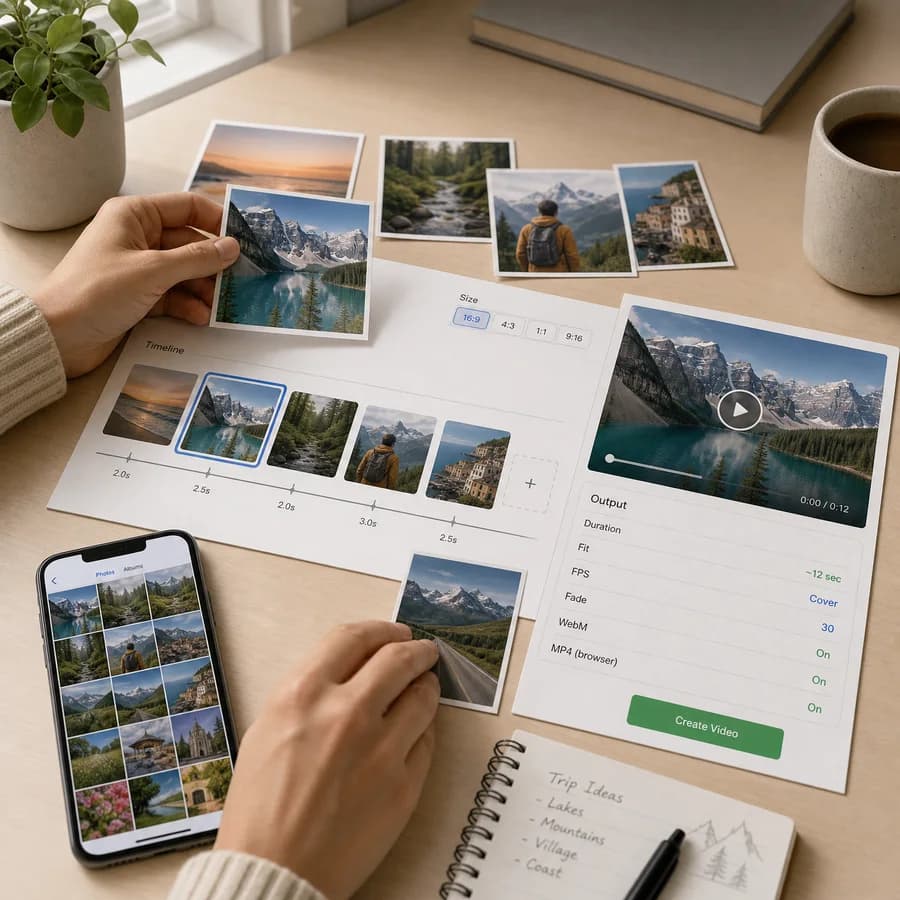
Image to Video Maker helps you make a video from images locally in your browser without uploading the selected files.
Use this photo to video maker to turn photos into video online with custom slide timing, output size, fit mode, background color, FPS, supported format selection, preview, copy-ready summary, and download.
Choose images
JPG, JPEG, PNG, WebP, GIF, BMP, AVIF, and SVG files. Select multiple images or drag them here to build a browser-local slideshow video.
Video settings
Used for contain padding and transparent image pixels.
Generate video
Choose images to enable local video generation.
Output format: WebM. Generic WebM recorder support reported by this browser.
Video result
Preview, copy export details, and download the generated file.
No video generated
Choose images, set timing and output options, then generate a local video preview.
Supported image and video types
Image inputs are decoded by the browser. Video outputs are limited to MIME types that the current browser reports as recordable with MediaRecorder.
High-quality WebM when VP9 recording is available.
Broad WebM fallback when VP8 recording is available.
Generic WebM recorder support reported by this browser.
MP4 is shown only when MediaRecorder reports H.264 MP4 support.
Generic MP4 recorder support reported by this browser.
Image to Video Guide
What this tool creates
Image to Video Maker builds a simple video slideshow from still images. The selected images are decoded in the browser, drawn onto a canvas, captured as a video stream, and recorded with the browser MediaRecorder API.
This workflow fits quick downloadable clips from product photos, screenshots, travel pictures, presentation images, before-and-after frames, or short social visuals when you do not need a full hosted video editor.
- Selected files stay local in the browser.
- The result is generated from canvas frames, not uploaded to a server encoder.
- Only browser-supported video recording formats are shown.
- A successful non-empty video export is the value-producing action that consumes a tool use.
Supported image inputs
The tool accepts common browser-decodable image files: JPG, JPEG, PNG, WebP, GIF, BMP, AVIF, and SVG. Actual decoding depends on the current browser, operating system, and the file itself.
Animated inputs are used conservatively as still slideshow sources. If a GIF, animated WebP, APNG, or AVIF contains animation, this browser workflow treats the decoded image as a slide instead of preserving every animation frame.
- Unsupported files and decode failures are shown before generation and do not consume a use.
- PNG transparency is composited over the selected background color.
- SVG files can fail if the browser cannot safely draw the file to canvas.
- Very large image sets or high-resolution exports can be slow because all work happens on the device.
Output format expectations
Video output depends on MediaRecorder support in the current browser. WebM VP9, WebM VP8, and generic WebM are practical browser recording choices where supported; MP4 appears only when the browser reports MP4 recording support.
A format appearing in the selector means the browser reports that MIME type as recordable. Recording can still fail because of memory, device resources, canvas security restrictions, or browser codec implementation details.
- The tool checks MediaRecorder.isTypeSupported before showing a format.
- The selected MIME type controls the recorder and the download extension.
- It does not promise universal MP4, H.264, HEVC, AV1, MOV, or every possible video container.
- If no usable recording format is available, the page explains that the browser cannot create a video locally.
Controls users expect
People searching for an image to video maker usually expect visible slideshow controls before export. The main workflow includes ordering, removal, duration per image, canvas size, fit mode, background color, FPS, transition length, preview, copy summary, and download.
Use contain mode when the whole image should remain visible with padding. Use cover mode when the slide should fill the video frame and cropping is acceptable.
- Move images up or down before encoding.
- Choose common output sizes or enter custom dimensions.
- Set duration per image and see the total video length before generation.
- Turn fade to 0 seconds for clean slide cuts.
Privacy and performance limits
The privacy model is browser-local: source images, decoded frames, and generated video blobs are handled on the device. Temporary preview URLs are revoked when the selection or result is reset.
Local encoding is still real media work. Long durations, many images, high FPS, and 4K-size canvases create more frames and larger blobs, so a smaller preview size is better for fast tests before making a final export.
- Recorder tracks are stopped after generation finishes or fails.
- The tool caps unsafe dimensions and total duration to keep browser work reasonable.
- Validation errors, unsupported formats, missing files, and failed encodes do not consume a tool use.
- Use the generated preview to confirm timing and framing before downloading.