
JPEG Quality Slider Compressor
JPEG Quality Slider Compressor helps reduce JPG and JPEG file size by choosing the exact quality percentage you want before downloading a new .jpg copy.
JPG quality compressor workflows are useful for email, websites, upload forms, and previews when you want manual control over the balance between file size and visible detail.
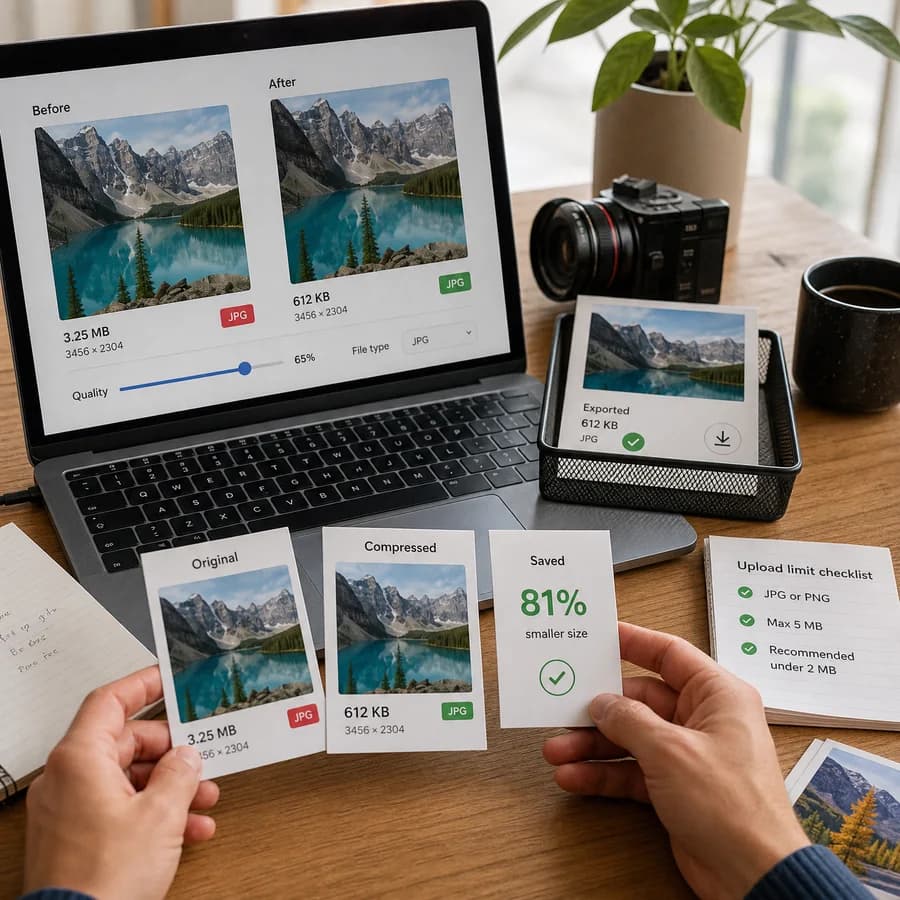
Supported image types
The tool creates a new JPEG file from browser-decodable still images. JPEG and JFIF stay in the same family; PNG, WebP, and AVIF are converted to JPEG with a white background where transparency exists.
Choose an image and JPEG quality
JPG, JPEG, JFIF, PNG, WebP, and AVIF images up to 50 MB. Output is a new .jpg file.
Balanced quality for common web and upload use.
JPEG result
Quality, output size, dimensions, and download.
JPEG Quality Slider Compression Guide
What the JPEG quality slider controls
A JPEG quality slider controls how aggressively the browser re-encodes image detail when it creates a new JPEG file. Higher values keep more detail and usually create larger files. Lower values discard more detail and usually create smaller files, but compression artifacts can become visible around edges, text, faces, and smooth gradients.
This tool keeps the pixel dimensions the same and changes only the JPEG encoding quality. That makes it useful when a form, CMS, marketplace, email workflow, or web page accepts the current width and height but needs a smaller .jpg file.
- Use 80-90% when visual quality matters and only moderate size reduction is needed.
- Use 60-75% for a common balance between smaller files and acceptable web quality.
- Use 40-55% when size matters more than fine detail, then inspect text and faces before using the result.
- Avoid repeatedly recompressing the same JPEG; start from the original image when possible.
How this browser compressor works
The selected image is decoded locally by the browser, drawn to a canvas, and exported as a new JPEG blob at the selected quality value. The file is not uploaded to a server. Because the output is a fresh JPEG export, browser canvas encoding normally does not preserve camera metadata, GPS metadata, editor comments, or the original ICC payload.
JPEG output does not support transparency. When a PNG, WebP, or AVIF image contains transparent pixels, this tool draws a white background before exporting the .jpg file. For transparent graphics, keep the original PNG/WebP or use a format that supports alpha instead of JPEG.
- Input files are processed locally with browser image APIs.
- Output is always a .jpg file, even when the input is PNG, WebP, or AVIF.
- The tool counts only smaller downloadable JPEG outputs as successful tool uses.
- If the result becomes larger, lower the quality slider or keep the original file.
Choosing a practical JPEG quality value
There is no universal best quality number because photos, screenshots, scans, and product images compress differently. Large natural photos often shrink well at 70-80%. Screenshots with text can show artifacts earlier. Small images may become larger after re-encoding because the original encoder may already be efficient.
A good workflow is to start around 75%, check the output size, and inspect the preview at the final display size. If the image is still too large, lower the slider in small steps. If edges, text, or faces look degraded, move the slider higher or use a target-size compressor that can combine quality changes with dimension changes.
- For profile photos and listing images, try 70-80% first.
- For web thumbnails, try 55-70% and verify sharp edges.
- For scanned documents, inspect text carefully before using low quality values.
- For strict upload targets such as 50 KB or 100 KB, use a target-size compressor when quality alone is not enough.
Limits and privacy notes
Browser JPEG encoders vary slightly between engines, so the same quality value can produce different file sizes in Chrome, Safari, Firefox, or mobile browsers. Very large images can also exceed browser canvas memory limits, especially on older phones.
The tool is designed for quick single-file compression, not batch asset pipelines. Keep your original file when you need archival quality, exact color metadata, camera metadata, transparent pixels, or repeat exports at several quality levels.
- The original file remains unchanged on your device.
- The downloaded JPEG is a recompressed copy and may lose metadata.
- Large camera files may need resizing before quality-only compression is practical.
- Use the copied summary when documenting output size and quality settings.