
QR Code Generator
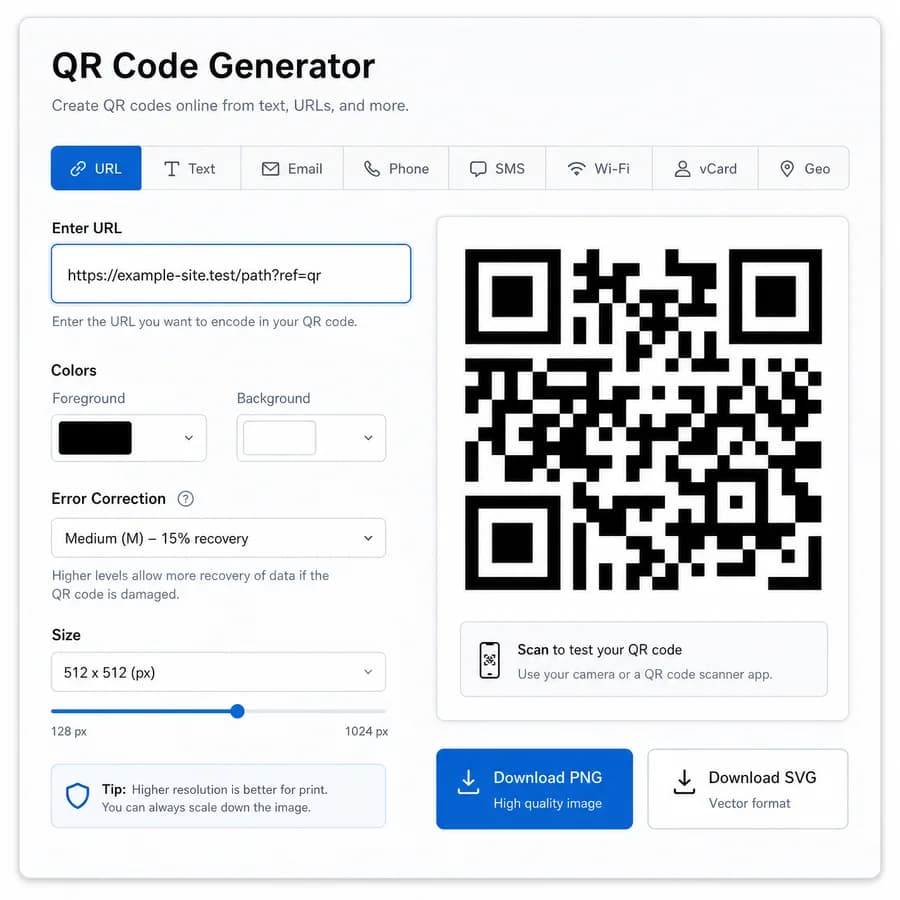
QR Code Generator creates scan-ready QR codes online from text, links, contact details, Wi-Fi credentials, email, phone, SMS, and location payloads.
Customize colors, margin, output size, and error correction level, then preview the result and download a PNG or SVG without sending your data to a server.
QR preview appears here
Choose a content preset, confirm the encoded value, then download a PNG or SVG for sharing, print, packaging, or signage.
Create a QR Code Online
Choose the QR code content type
Start with a plain text or URL QR code when you need the broadest scanner compatibility. Use presets for email, phone, SMS, Wi-Fi, vCard contact details, and geo coordinates when you want phone cameras and scanner apps to recognize an action instead of showing raw text.
The generated payload is shown after a successful run so you can confirm exactly what will be encoded before downloading the QR image. This is useful for links, Wi-Fi passwords, contact cards, and location strings that can contain sensitive or easy-to-mistype values.
- URL payloads keep the full HTTP or HTTPS scheme so scanners can open the link directly.
- Email QR codes produce a mailto URI with optional subject and body fields encoded safely.
- Phone and SMS presets format tel and SMSTO payloads without decorative text.
- Wi-Fi QR codes follow the common WIFI payload syntax and escape backslashes, semicolons, commas, quotes, and colons where required.
- vCard QR codes create a BEGIN:VCARD payload for names, phone numbers, email, organization, title, website, and address fields.
- Geo QR codes output a geo URI from validated latitude and longitude values.
Customize scannable output
The styling controls are intentionally practical: foreground color, background color, margin, output size, and error correction level. QR codes scan best when the foreground is clearly darker than the background and the quiet zone around the symbol remains visible.
Higher error correction can make a QR code more resilient to small marks or damage, but it can also make the symbol denser. When the payload is long, use a larger output size and keep the color contrast strong instead of relying on decoration.
- The default output uses a dark foreground, light background, visible quiet zone, and medium error correction.
- The tool rejects identical or very low-contrast colors before generation.
- The margin control keeps blank space around the QR symbol for scanners.
- PNG works well for everyday sharing and web use.
- SVG works better for print, design tools, and crisp scaling.
Preview, copy, and download
After successful generation, the result area shows the QR preview, a copy-all text result, and separate download actions for PNG and SVG. The copy text includes the encoded payload, QR type, size, margin, colors, error correction level, and available download formats.
The QR code is generated locally in the browser. Private Wi-Fi passwords, contact details, phone numbers, SMS messages, and location values do not need to be uploaded just to create the downloadable image.
- Only successful QR generation consumes a tool use.
- Validation errors, incomplete fields, weak color choices, and access prompts do not consume usage.
- Generated outputs use the same validated payload and settings for PNG and SVG.
- Always test a final QR code with the scanners or camera apps your audience will use before printing at scale.