
Your strongest idea goes here. Make it short enough to read in one glance.
Slide 1
Your strongest idea goes here.
slide-01-your-strongest-idea-goes-here.png
Text to Slide Images creates styled PNG slides from pasted text without uploading your copy or background images.
Blank lines split the text into separate slides, while live previews, canvas sizes, background uploads, and ZIP export help you make a complete image set quickly.
Use a blank line between blocks of text. Each block becomes a separate image slide.
Upload optional backgrounds
Choose JPG, PNG, or WebP images. They are assigned to slides in order and reused if there are fewer backgrounds than slides.
2 slides at 1080 x 1080px using Editorial.
Your strongest idea goes here. Make it short enough to read in one glance.
Slide 1
Your strongest idea goes here.
slide-01-your-strongest-idea-goes-here.png
Second slide starts after a blank line. Use line breaks inside a slide for rhythm.
Slide 2
Second slide starts after a blank line.
slide-02-second-slide-starts-after-a-blank-line.png
Write one sentence, short paragraph, or line-broken message for each slide. A blank line starts the next slide, so a pasted outline can become a whole carousel without adding slides manually.
Line breaks inside the same block stay inside that slide. This makes it useful for quotes, short announcements, product notes, educational tips, and lightweight presentation cards.
The square canvas is best for feed posts and carousel slides, the story canvas is best for vertical mobile slides, and the wide canvas is best for deck covers, video thumbnails, or simple presentation graphics.
Style presets control the background, text color, accent, panel treatment, and type feel. They are designed as practical starting points rather than templates that require a design account.
Uploaded backgrounds are read through local browser object URLs. They are not sent to a server by the slide generator, and the final PNG files are rendered from an offscreen canvas on your device.
If you upload fewer backgrounds than slides, the tool repeats them in order. If you upload none, it uses the selected style's built-in background so every slide can still export.
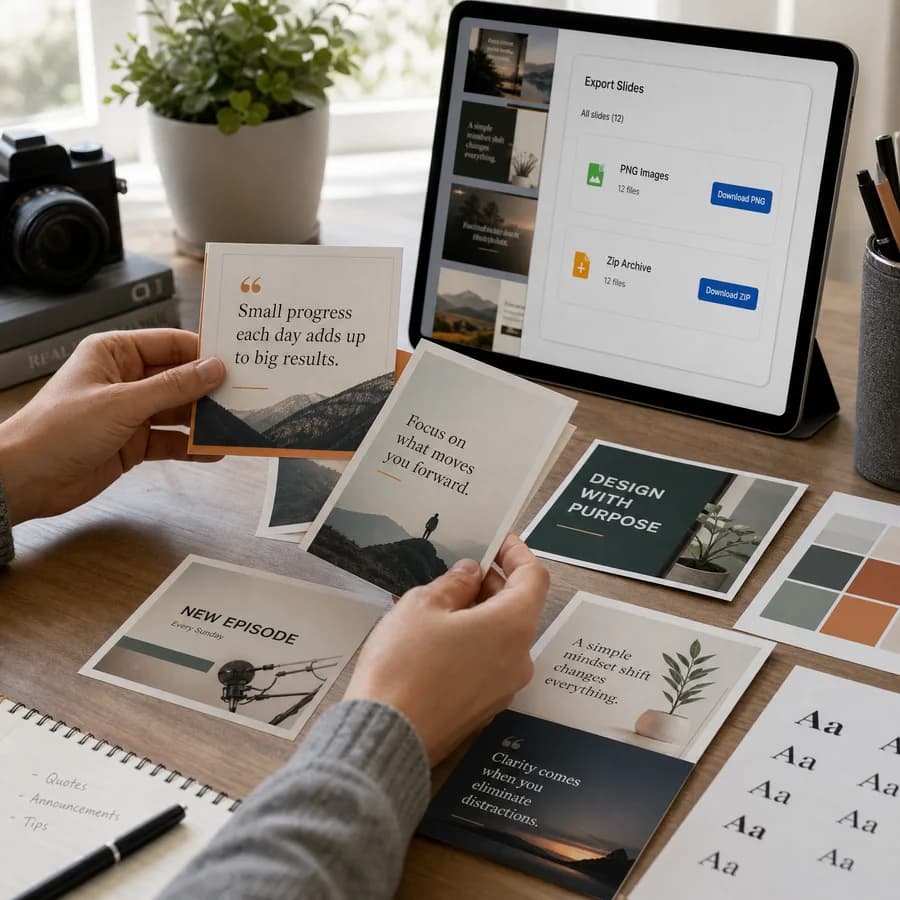
Download a single PNG when you only need one card, or download the ZIP when you want every slide at once. The exported PNG uses the selected canvas dimensions rather than a screenshot of the visible preview.
For best results, keep each slide short. Very long paragraphs can still export, but short lines create stronger, more readable images on mobile screens.