
WebP to JPG Converter
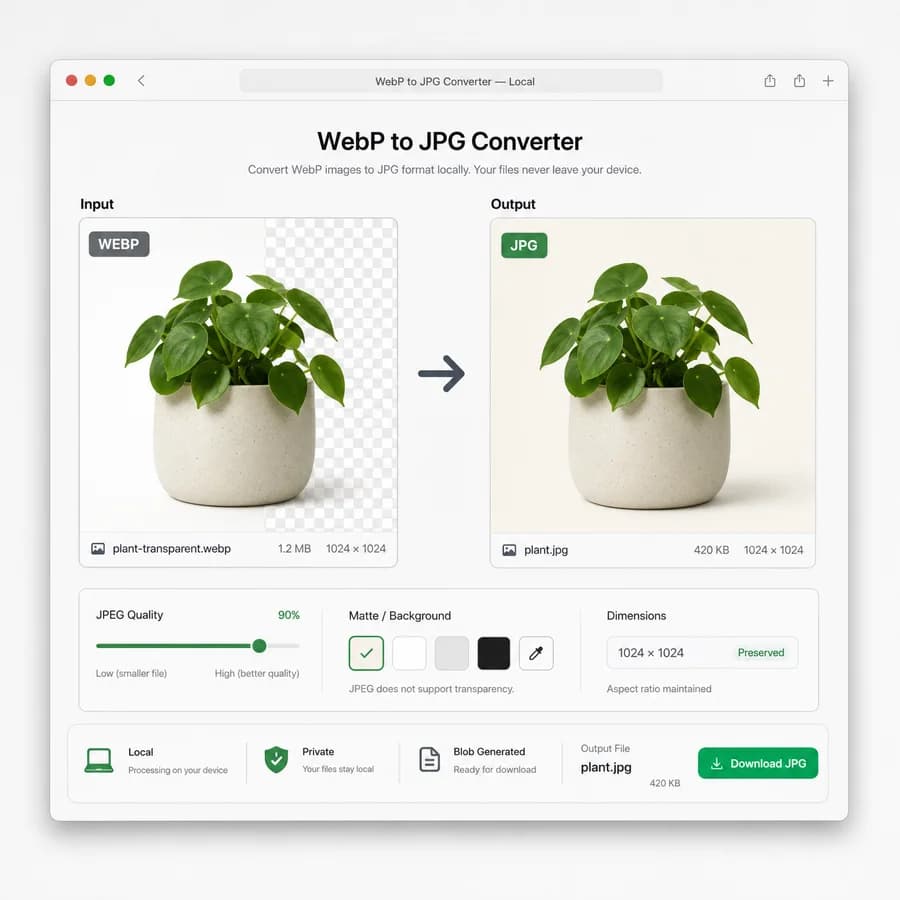
WebP to JPG Converter turns WebP images into downloadable JPG/JPEG files locally in your browser without uploading the image.
Use it to convert WebP to JPEG with a quality slider, preserved dimensions, verified image/jpeg output, a .jpg filename, and predictable matte handling for transparent WebP pixels.
Choose a WebP image
WebP images up to 50 MB. Transparent pixels are flattened over the selected JPEG matte color because JPG has no alpha channel.
JPG output is locked for this dedicated WebP to JPG Converter.
image/jpeg .jpg
Transparent pixels are flattened over this color for JPG output.
JPG conversion result
image/jpeg MIME, .jpg extension, preserved dimensions, file size, filename, quality setting, matte color, and Blob checks.
No image selected
Choose a WebP image to create a verified JPG output file.
WebP input and JPG output checks
Source images
Output checks
- MIME type matches the selected encoder.
- Download extension matches the output MIME.
- Decoded output dimensions match the source pixels.
- Blob generation succeeds with a nonzero file size.
WebP to JPG Conversion Guide
When to Convert WebP to JPG
WebP is efficient for web delivery, but JPG is still the safer handoff format for older apps, image viewers, CMS upload fields, print vendors, email workflows, and compatibility checks.
This tool should stay focused on one conversion path: WebP input to JPEG output. Users who need PNG, WebP, AVIF, or multi-format export can use the broader Image Format Converter instead.
- Use JPG when a website, app, or workflow rejects WebP uploads.
- Use JPG for photographic images where lossy compression is acceptable.
- Keep WebP when transparency, animation, or smaller web delivery size matters more than compatibility.
Output Checks to Show
The result panel should make it clear that the browser generated a real JPEG file, not a renamed WebP. Show the original file details next to the output details so users can confirm the conversion at a glance.
Use deterministic copy and download labels so automated tests can assert the exact browser-local workflow.
- Output MIME must be image/jpeg.
- Suggested filename must end in .jpg.
- Output width and height should match the decoded WebP dimensions.
- Generated Blob status, byte size, and object URL preview should come from the converted JPEG Blob.
- Primary actions should use stable text such as Copy JPG details and Download JPG.
JPEG Quality Slider
JPEG output is lossy, so the quality slider should control the quality argument passed to the shared converter path for image/jpeg output. The default should favor a practical balance of visual quality and file size rather than maximum compression.
The UI should explain quality through file-size tradeoffs, not vague promises of no quality loss. Re-encoding a lossy WebP to JPEG can compound artifacts.
- Use a bounded quality value compatible with canvas JPEG export, such as 0.1 to 1.0 internally and 10 to 100 in the UI.
- Changing quality should regenerate the Blob and update size, preview, and copyable details.
- Tests should verify that lower quality generally produces a different Blob size on a photographic fixture.
Transparent WebP Handling
WebP can contain alpha transparency, but baseline JPEG output cannot preserve that alpha channel. Transparent and semi-transparent pixels must be composited onto an explicit matte color before JPEG encoding.
Default to a predictable matte such as white, expose the chosen color in the result details, and make transparent WebP behavior visible before download so users do not get unexpected black or browser-default backgrounds.
- Detect whether the decoded WebP includes transparent or semi-transparent pixels when feasible through the shared canvas pixel path.
- Flatten all pixels over the selected matte before calling the JPEG encoder.
- Show a note when transparency was flattened because JPEG has no alpha channel.
- Changing the matte should regenerate the JPEG output and update preview and details.
Adapter Fit
This should use the existing browser-local image conversion core and the dedicated converter adapter pattern already used by the JPG to PNG, PNG to JPG, JPG to WebP, and PNG to WebP pages.
The page should not become a general image converter. Keep upload accept text, page copy, test names, and SEO metadata specific to WebP input and JPG/JPEG output.
- Restrict accepted source intent to WebP files while still relying on browser decode support.
- Set output format to image/jpeg and extension to .jpg in the adapter config.
- Reuse shared dimension, MIME, Blob, filename, quality, matte, copy, and download behavior where possible.
- Add a dedicated tool registry entry, route config, sitemap coverage, and generated preview asset.
References
- Official source: MDN image file type guide
- Official source: MDN HTMLCanvasElement.toBlob
- Official source: MDN Blob API
- Official source: IANA image/jpeg media type
- Official source: IETF RFC 9649 WebP Image Format
- Official source: Google WebP overview
- Comparison source: CloudConvert WebP to JPG
- Comparison source: iLoveIMG WebP to JPG
- Comparison source: Online-Convert WebP to JPG
- Comparison source: Convertio WebP to JPEG
- Comparison source: Ezgif WebP to JPG
- Comparison source: Canva WebP to JPG
- Comparison source: FreeConvert WebP to JPG
- Comparison source: Adobe Express WebP to JPG
- Comparison source: toWebP WebP to JPG
- Comparison source: Picflow WebP to JPG
- Comparison source: Zamzar WebP to JPG
- Comparison source: Pixelied WebP to JPG
- Open-source alternative source: Squoosh app
- Open-source alternative source: Squoosh GitHub
- Open-source alternative source: webp2jpg-online GitHub
- Open-source alternative source: ImageMagick formats
- Open-source alternative source: ImageMagick WebP options
- Open-source alternative source: GraphicsMagick formats
- Open-source alternative source: libvips
- Open-source alternative source: sharp output API
- Open-source alternative source: Pillow image formats
- Open-source alternative source: Converseen
- Open-source alternative source: Converseen GitHub
- Open-source alternative source: dinoosauro image-converter GitHub
Compare WebP to JPG Converter
Review this tool beside related online utilities, dedicated apps, and adjacent workflows.
Compare WebP to JPG Converter with other toolsOpen Source Alternatives
Compare this focused browser workflow with proprietary software and online tools that solve similar jobs.
View WebP to JPG Converter open source alternatives