
Image Histogram Generator + CSV vs Adobe Photoshop Histogram Panel
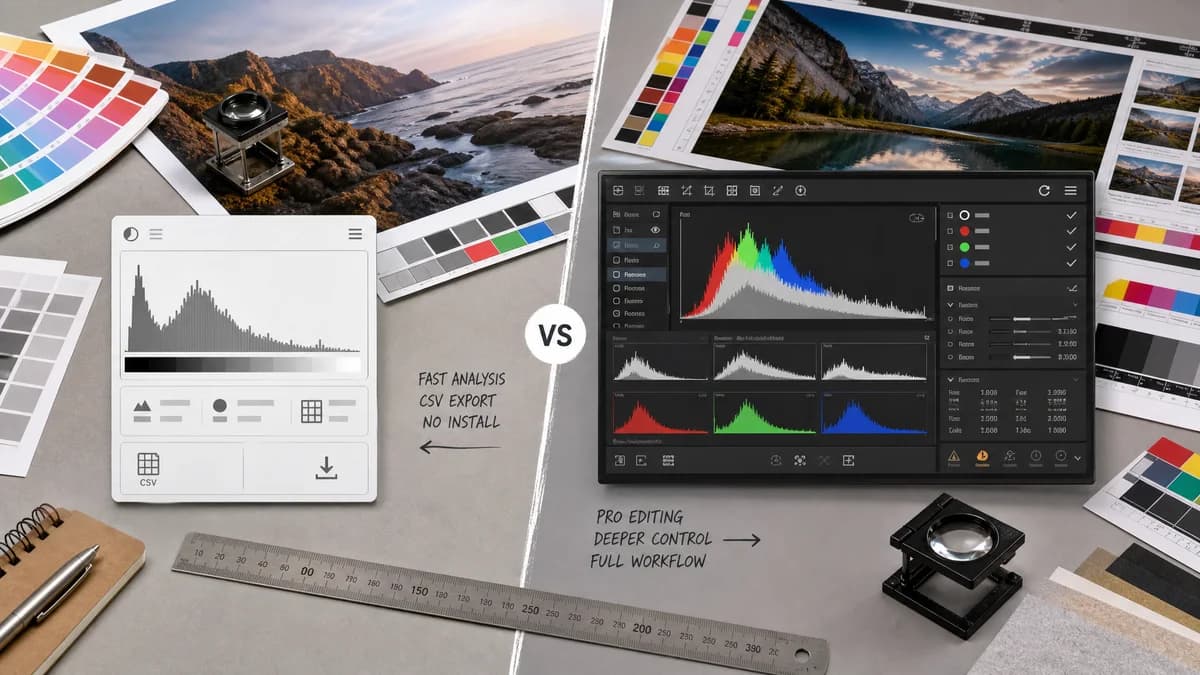
Image Histogram Generator + CSV is the baseline in this comparison: Generate RGB and luminance histograms from an image locally in your browser, then export the 256-bin channel table as CSV.
Photoshop's Histogram panel shows tonal and color information, channels, luminosity, statistics, selected-area histograms, and cache-aware refresh behavior inside a full editor.
Quick verdict
Photoshop is stronger for editing and professional workflows, while TextFaker should be better for quick no-install histogram CSV output.
How Image Histogram Generator + CSV fits
TextFaker should not compete with Photoshop as an editor; it should offer a fast browser-local exportable histogram when users only need analysis and CSV data.
How Adobe Photoshop Histogram Panel fits
Photoshop provides deep histogram viewing in the context of professional editing, including Compact, Expanded, and All Channels views, channel selection, luminosity, statistics, and selection/layer context.
Side-by-side comparison
| Decision point | Image Histogram Generator + CSV | Adobe Photoshop Histogram Panel | Takeaway |
|---|---|---|---|
| Primary purpose | Our workflowFocused browser-local histogram visualization and CSV export. | Competitor workflowFull professional image editor with histogram panel as one analysis feature. | TextFaker should be simpler and faster for one task. |
| Channels | Our workflowPlanned RGB and luminance outputs. | Competitor workflowSupports individual channels, RGB/CMYK/composite, luminosity, and colors views depending on image mode. | Photoshop has broader professional channel context. |
| Statistics | Our workflowShould include practical image and channel statistics for export workflows. | Competitor workflowDisplays mean, standard deviation, median, pixels, level, count, percentile, and cache level. | Photoshop sets a high standard for statistics. |
| CSV export | Our workflowPlanned first-class CSV download. | Competitor workflowOfficial histogram panel documentation focuses on viewing and statistics, not direct CSV export. | TextFaker can be better for numeric export. |
| Selection and layers | Our workflowLikely analyzes the uploaded rendered image as a whole unless crop/selection is added. | Competitor workflowCan display histogram data for a selection, layer, entire image, or adjustment composite. | Photoshop is stronger for editing-context analysis. |
| Installation and cost | Our workflowRuns in browser through a web tool with TextFaker access flow. | Competitor workflowCommercial Adobe application feature. | TextFaker should appeal to users who want no desktop suite. |
Use Image Histogram Generator + CSV when
- Users who do not have Photoshop installed
- Users who need CSV histogram data quickly from a browser
- Developers and QA users analyzing assets rather than editing them
Use Adobe Photoshop Histogram Panel when
- Professional editors adjusting exposure, curves, levels, and layers
- Users who need histograms tied to selections, layers, and adjustment previews
- Creative Cloud users already working inside Photoshop
Detailed comparison
Role Difference
Photoshop is an editing environment, not a lightweight export utility. The TextFaker page should frame the comparison around speed, browser use, and CSV data rather than claiming to replace Photoshop.
Statistics Benchmark
Photoshop documents several useful statistics. TextFaker should at least include the statistics that matter for non-editing analysis: total pixels, per-channel min/max, mean, median, standard deviation, clipping counts, and percentile-friendly CSV values.
Export Opportunity
Photoshop users can view detailed histogram information, but a simple browser CSV export is not the focus of the official panel documentation. That leaves a specific utility gap.
- Make the CSV action obvious.
- Preview the first rows of data.
- Name the file predictably.
SEO Angle
Queries comparing an online image histogram generator with Photoshop likely come from users who want a quick alternative, not an editing replacement.
Research notes
- Official Adobe documentation defines an image histogram as pixel distribution by color intensity level.
- Photoshop Histogram panel offers Compact, Expanded, and All Channels views.
- Official documentation lists luminosity and color channel options for RGB or CMYK images.
- Official documentation lists statistics including mean, standard deviation, median, pixels, level, count, percentile, and cache level.
Official source
The only outbound competitor link on this page is placed here for source checking after the comparison.
Official Adobe Photoshop Histogram Panel source