
Image Histogram Generator + CSV vs GIMP Histogram Dialog
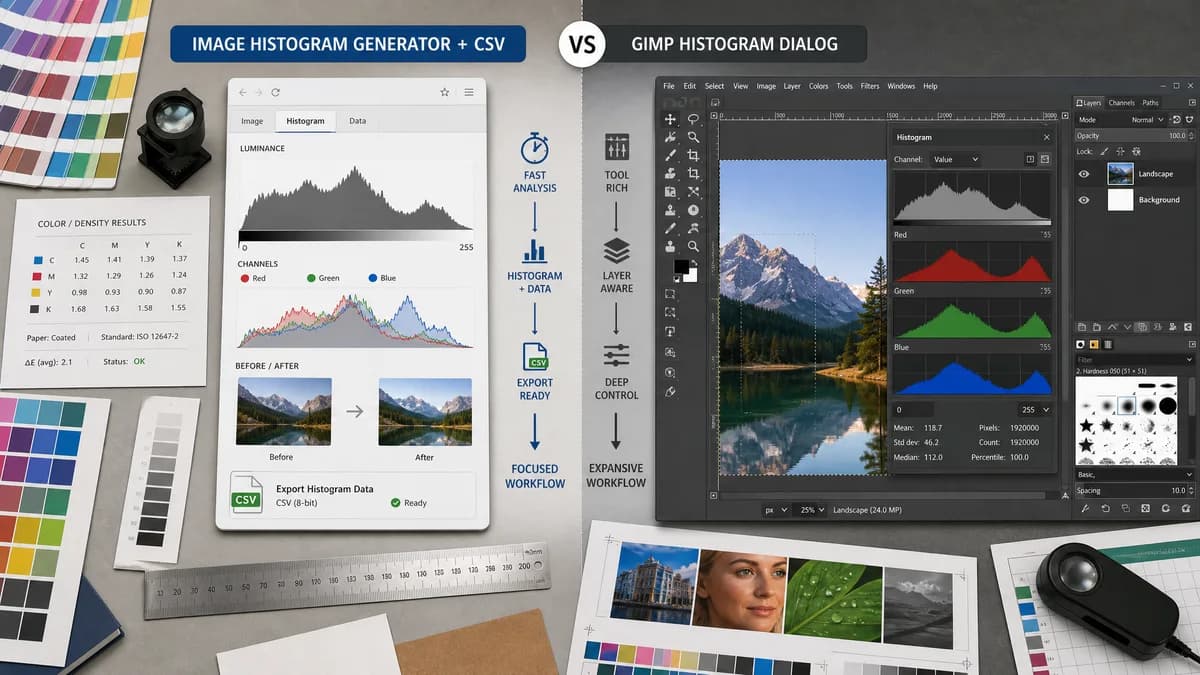
Image Histogram Generator + CSV is the baseline in this comparison: Generate RGB and luminance histograms from an image locally in your browser, then export the 256-bin channel table as CSV.
GIMP includes a dockable Histogram dialog that shows statistical distribution of color values for the active layer or selection.
Quick verdict
GIMP is better for open-source desktop editing, while TextFaker should be better for fast browser access and exportable histogram data.
How Image Histogram Generator + CSV fits
TextFaker should offer a browser-local histogram and CSV export for users who need quick analysis without installing an image editor.
How GIMP Histogram Dialog fits
GIMP's Histogram dialog is an informational panel inside a full open-source editor, with access through dockable dialogs and color-channel-oriented analysis.
Side-by-side comparison
| Decision point | Image Histogram Generator + CSV | GIMP Histogram Dialog | Takeaway |
|---|---|---|---|
| Software model | Our workflowBrowser-based TextFaker tool. | Competitor workflowInstalled open-source desktop image editor feature. | TextFaker has lower setup friction. |
| Editing context | Our workflowFocused on analysis and export, not image manipulation. | Competitor workflowHistogram is part of an editor and can inform color balance or levels work. | GIMP is stronger when analysis leads to editing. |
| Channel support | Our workflowPlanned RGB and luminance visualization. | Competitor workflowDocumentation describes RGB images decomposed into red, green, and blue channels and grayscale value handling. | Both address channel distribution. |
| CSV export | Our workflowCore planned feature. | Competitor workflowOfficial dialog documentation emphasizes informational viewing rather than CSV export. | TextFaker should be more direct for spreadsheet workflows. |
| Layer or selection context | Our workflowWhole-upload analysis unless selection tooling is added. | Competitor workflowShows distribution for active layer or selection. | GIMP has stronger in-editor context. |
| Learning curve | Our workflowSingle-purpose upload, view, export workflow. | Competitor workflowRequires familiarity with dockable dialogs and image-menu navigation. | TextFaker can be easier for occasional users. |
Use Image Histogram Generator + CSV when
- Users who need a quick online histogram from one image
- Users who want CSV output without configuring desktop tools
- Users who prefer a focused web utility over a full editor
Use GIMP Histogram Dialog when
- Users already editing images in GIMP
- Open-source users who need histogram context for layer or selection work
- Users who need broader image editing tools around the histogram
Detailed comparison
Open Source Context
GIMP is a credible open-source alternative for users who want a full editor. TextFaker should acknowledge that strength while focusing its own value on speed and data export.
Content Positioning
The comparison should say that GIMP's histogram is useful during editing, while TextFaker is for getting a histogram and CSV without entering an editor workflow.
Implementation Lesson
GIMP's active layer or selection behavior suggests a possible future feature: analyzing a selected crop region in the browser.
- Initial version can analyze whole image.
- A crop/region selector would be a useful later enhancement.
- CSV should clearly state whether it covers the full image or a selected region.
SEO Angle
Useful search targets include GIMP histogram CSV alternative, online image histogram alternative to GIMP, and browser image histogram viewer.
Research notes
- Official GIMP documentation says the Histogram dialog shows statistical distribution of color values in the active layer or selection.
- Official documentation says the dialog is purely informational.
- Official documentation describes RGB images decomposed into R, G, and B channels.
- The docs show the dialog can be accessed through Windows, Dockable Dialogs, Histogram or Colors, Info, Histogram.
Official source
The only outbound competitor link on this page is placed here for source checking after the comparison.
Official GIMP Histogram Dialog source