
JPG to WebP Converter vs TinyIMG
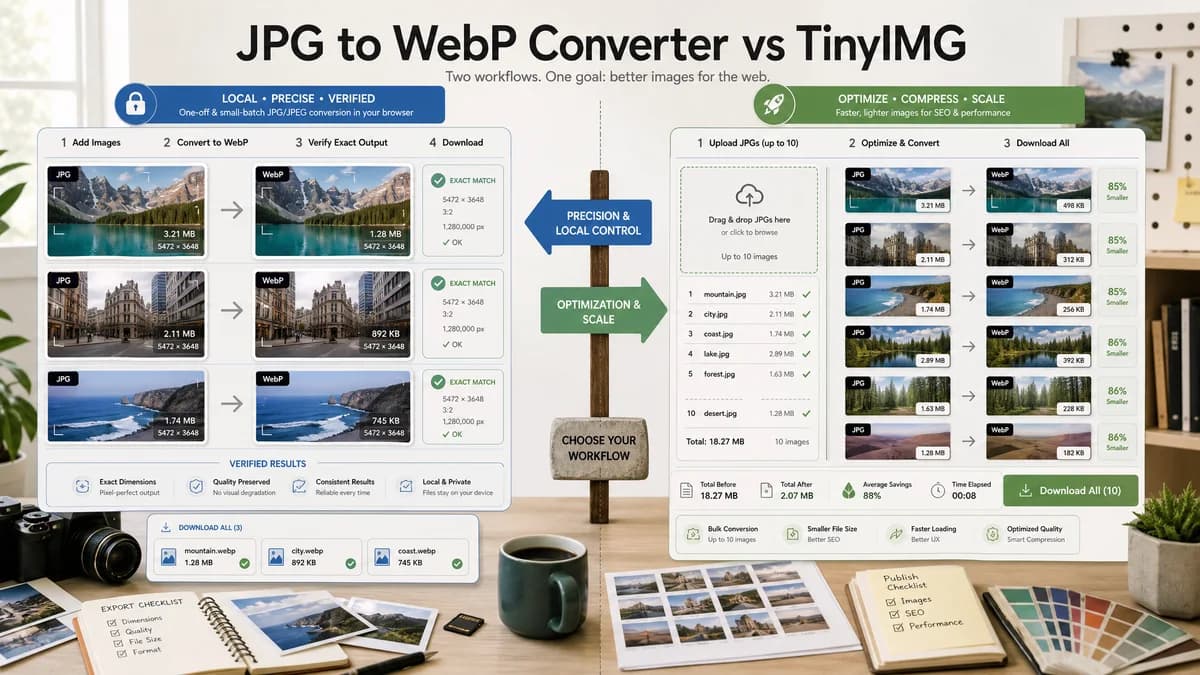
JPG to WebP Converter is the baseline in this comparison: Convert a JPG or JPEG image to WebP in your browser, adjust WebP quality, and verify the output MIME type, .webp filename, dimensions, file size, and generated Blob before download.
TinyIMG offers a JPG to WebP converter with bulk conversion up to 10 files and image optimization-oriented messaging.
Quick verdict
TinyIMG is stronger for SEO/image optimization positioning. TextFaker should compete on local conversion, exact output checks, and consistency with related browser-local image tools.
How JPG to WebP Converter fits
TextFaker should target local one-off and small-batch JPG/JPEG conversion with explicit output verification rather than ecommerce or SEO platform optimization.
How TinyIMG fits
TinyIMG positions WebP conversion around smaller file sizes, reduced image weight, fast workflow, and bulk conversion up to 10 JPG images.
Side-by-side comparison
| Decision point | JPG to WebP Converter | TinyIMG | Takeaway |
|---|---|---|---|
| Positioning | Our workflowBrowser-local JPG/JPEG to WebP utility | Competitor workflowImage optimization and SEO-oriented converter | TinyIMG is more marketing/optimization focused. |
| Bulk limit | Our workflowImplementation should state only what it supports | Competitor workflowOfficial page says up to 10 JPG images in bulk | Do not overpromise batch size in TextFaker copy. |
| Output proof | Our workflowMIME, filename, dimensions, Blob, copy/download text | Competitor workflowConversion and download workflow | TextFaker should surface details that optimization sites may abstract away. |
| Quality behavior | Our workflowQuality slider for WebP output | Competitor workflowQuality retention is part of the page messaging | TextFaker should make the control concrete. |
| Input scope | Our workflowJPG/JPEG only on this page | Competitor workflowJPG to WebP and vice versa messaging appears in the product family | TextFaker can avoid direction ambiguity. |
| Testing | Our workflowGenerated images and fixtures validate exact local behavior | Competitor workflowExternal service behavior is not part of TextFaker tests | TextFaker's trust story can be more verifiable. |
Use JPG to WebP Converter when
- Users who want a local conversion result immediately
- People verifying file type and dimensions before uploading elsewhere
- TextFaker visitors using adjacent image utilities
Use TinyIMG when
- Users who want image optimization-oriented WebP conversion
- Small bulk jobs up to the stated limit
- SEO or ecommerce teams already using TinyIMG
Detailed comparison
Optimization Claims
TinyIMG ties WebP to smaller file sizes and site speed. TextFaker should mention file-size tradeoffs but avoid fixed savings claims.
- Use cautious copy such as 'often smaller' or 'quality-size tradeoff'.
- Do not promise a specific percentage reduction.
Page Scope
The planned TextFaker page should not become a full SEO image optimizer. It should convert JPG/JPEG to WebP and report output facts.
- Keep resize, compression targets, and SEO audits out of scope.
- Link to other TextFaker tools only if relevant.
Validation Panel
A concise metadata panel can distinguish TextFaker from conversion pages that only return a file.
- Original width and height.
- Output width and height.
- Output MIME and filename.
Generated Images
Generated image tests should cover common photo-like content because JPG input is usually photographic.
- Use a generated gradient/photo-like JPEG fixture.
- Use a generated simple graphic fixture to catch edge behavior.
Research notes
- TinyIMG's official page describes JPG to WebP bulk conversion up to 10 files and reduced-size WebP positioning.
- This is a direct proprietary competitor.
- TextFaker should avoid claiming better compression without empirical tests.
Official source
The only outbound competitor link on this page is placed here for source checking after the comparison.
Official TinyIMG source