
PNG to JPG Converter vs Canva
PNG to JPG Converter is the baseline in this comparison: Convert a PNG image to JPG in your browser, choose the JPEG quality and matte color for transparency, then confirm image/jpeg MIME, .jpg filename, dimensions, file size, and Blob status before download.
A dedicated browser-local converter can complement Canva by focusing only on PNG input, JPEG output validation, and predictable alpha flattening.
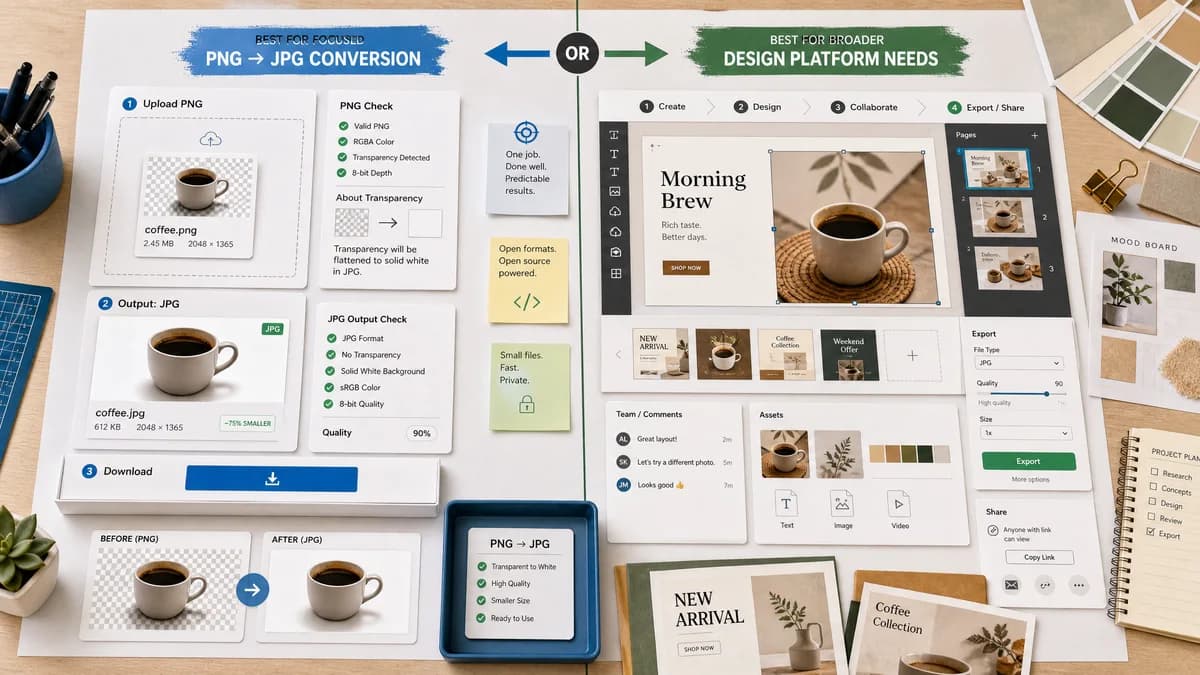
Quick verdict
PNG to JPG Converter is the better fit when the job is a focused browser-local PNG to JPG conversion with visible JPEG output checks and explicit transparency flattening. Canva is still a better fit when the user needs the broader commercial design platform and online image converter workflow around the same conversion.
How PNG to JPG Converter fits
TextFaker should be positioned as a focused PNG-to-JPG utility for users who do not need templates, collaboration, or editing projects. The useful open-source-powered angle is local browser conversion with transparent output facts.
How Canva fits
Canva provides a PNG to JPG converter page inside its broader visual design platform.
Side-by-side comparison
| Decision point | PNG to JPG Converter | Canva | Takeaway |
|---|---|---|---|
| Conversion scope | Our workflowPNG to JPG/JPEG only. | Competitor workflowPart of Canva's broader image editing and design suite. | TextFaker should keep the page narrow for search intent and speed. |
| Local processing | Our workflowBrowser-based workflow designed to avoid server upload for conversion. | Competitor workflowHosted proprietary web product. | Local handling is the strongest differentiator. |
| Transparent PNGs | Our workflowFlatten over chosen matte before JPEG encode. | Competitor workflowTransparency details are not the central page promise. | Make the JPEG alpha limitation visible. |
| Validation | Our workflowObjectively confirm image/jpeg output and .jpg filename. | Competitor workflowUser receives a converted download. | Expose technical certainty for developers and QA users. |
| Copy affordances | Our workflowDeterministic copy text for output details. | Competitor workflowDesign-platform actions may vary by session and account state. | A stable utility interface is easier to test and document. |
| Generated image | Our workflowShow the browser-generated JPG preview from the output Blob. | Competitor workflowGenerated output is delivered inside Canva's hosted experience. | Tie preview, details, and download to the same output. |
Use PNG to JPG Converter when
- Browser-local PNG to JPG conversion for private or unpublished images.
- Checking image/jpeg MIME, .jpg filename, dimensions, file size, and generated Blob details after conversion.
- Flattening transparent PNG pixels against an explicit matte before downloading the JPG.
Use Canva when
- Designers, marketers, or teams already using Canva projects, templates, and brand assets.
- Users who already work inside Canva or need its broader hosted workflow.
- Cases where account-based, batch, editor, cloud, marketplace, or multi-format features matter more than a focused local utility.
Detailed comparison
Positioning
Compare against Canva on workflow size, not creative capability. Canva is better for design projects; TextFaker should be better for direct conversion with transparent technical output.
- Keep title and description centered on PNG to JPG.
- Mention local browser conversion and JPEG alpha flattening.
- Do not imply TextFaker replaces Canva templates or collaboration.
Page Requirements
The page should reuse the shared Image Format Converter core but constrain input/output language to PNG input and JPG/JPEG output.
- Accept image/png files.
- Export image/jpeg Blob.
- Use .jpg filename.
Transparency UX
The Canva alternative page should explain that transparent pixels cannot survive in JPEG and are composited onto a matte.
- Default matte should be predictable.
- User-selected matte should update preview and output.
Testing Notes
Use fixtures for opaque and transparent PNGs to verify dimensions, MIME, filename, generated image preview, and copy/download text.
Research notes
- Official Canva page confirms a PNG to JPG converter route.
- Canva is proprietary software in the design platform category.
- Avoid implying feature parity with Canva's editor; compare only the conversion workflow.
Official source
The only outbound competitor link on this page is placed here for source checking after the comparison.
Official Canva source