
Print Bleed Border Checker vs MOO Design Guidelines
Print Bleed Border Checker is the baseline in this comparison: Check image trim size, bleed, safe zone, borders, and print dimensions locally before sending artwork to a printer.
MOO publishes product-specific bleed, trim, and safe-area dimensions and provides downloadable templates for business cards and related print products.
Quick verdict
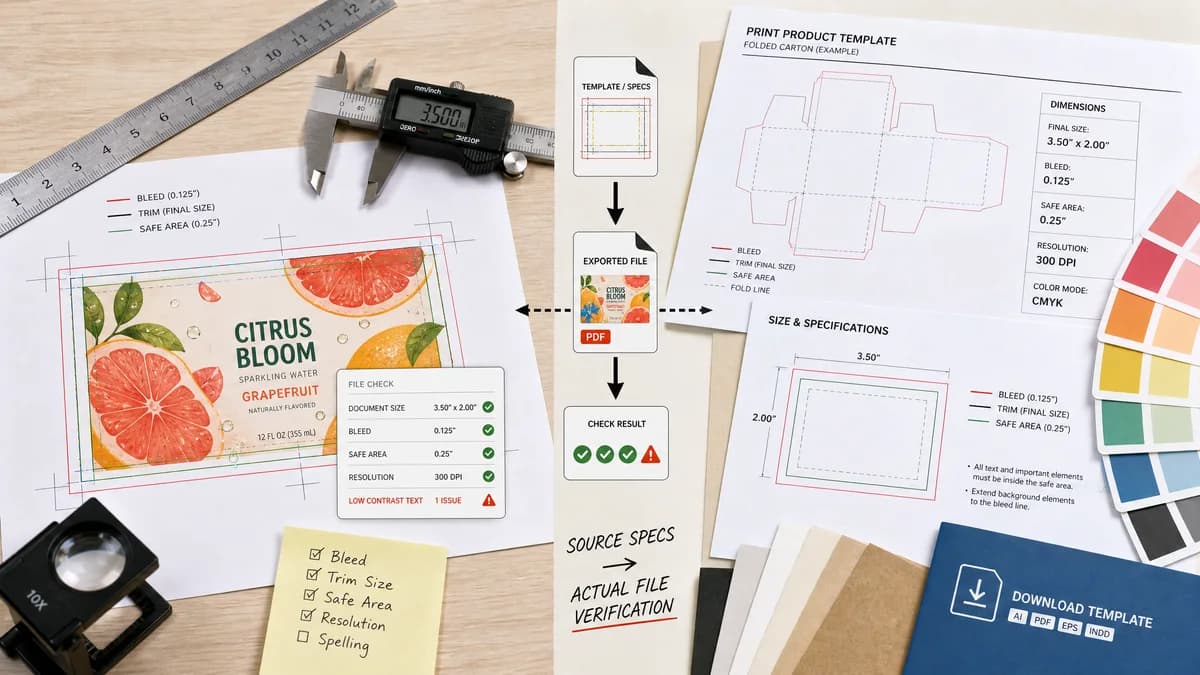
MOO gives the specs; TextFaker can check whether a finished file actually matches those specs.
How Print Bleed Border Checker fits
Print Bleed Border Checker is designed to let users test their exported design file against published dimensions like MOO's bleed, trim, and safe-area specs, then report pass/fail results.
How MOO Design Guidelines fits
MOO's guidelines are authoritative for designing files to MOO's product requirements, especially when users can work from downloaded templates.
Side-by-side comparison
| Decision point | Print Bleed Border Checker | MOO Design Guidelines | Takeaway |
|---|---|---|---|
| Role | Our workflowValidation tool for completed files. | Competitor workflowOfficial specification and template source. | Use MOO for specs and TextFaker for checking the final asset. |
| Deterministic report | Our workflowActual dimensions, expected dimensions, trim box, safe box, bleed status, and border widths. | Competitor workflowPublished dimensions and downloadable templates. | TextFaker turns guidelines into a file-specific result. |
| File sources | Our workflowWorks with files made in Canva, Photoshop, Affinity, mobile apps, or other tools. | Competitor workflowGuidelines apply to MOO products and templates. | TextFaker helps when the design did not start in a template. |
| Border handling | Our workflowCan warn about thin or uneven borders based on pixel measurement. | Competitor workflowWarns users to keep important aspects inside safe area and fill bleed area. | TextFaker gives measurable border diagnostics. |
| Vendor scope | Our workflowCustom presets can support MOO-like specs and other printers. | Competitor workflowMOO-specific product guidance. | TextFaker is vendor-neutral. |
| Mobile use | Our workflowQuick upload and check from a phone. | Competitor workflowTemplate downloads and design-app workflows are more desktop-oriented. | TextFaker can help casual card buyers on mobile. |
Use Print Bleed Border Checker when
- Verifying an exported card file against published dimensions
- Checking border thickness before ordering cards
- Testing files made outside MOO templates
- Producing a numeric report for designer handoff
Use MOO Design Guidelines when
- Finding official MOO card dimensions
- Downloading templates for supported design apps
- Designing directly to MOO product requirements
- Understanding MOO's safe area, trim, and bleed terminology
Detailed comparison
Demand Signal
MOO's guidelines publish exact bleed, trim, and safe-area dimensions because customers need concrete numbers to avoid white edges or chopped content. Public print-design discussions show many users still struggle to apply those numbers to their files.
- A checker can bridge guideline reading and file validation.
- MOO-style exact dimensions make strong test fixtures.
Product Gap
Guidelines do not inspect a user's exported file. TextFaker can compare the file to target specs and produce exact remediation hints.
- 'Add 38 px bleed to each side' is more actionable than a static template note.
- 'Safe area starts at x=93 px' can be asserted in tests.
Implementation Fit
Preset records can encode trim size, bleed, safe margin, and target DPI. The UI can also allow a custom setting so the tool is not tied to any one printer.
- Preset values should be source-backed when named for a vendor.
- Generic presets can be labeled by size rather than by vendor.
Content Angle
Comparison content should encourage users to follow printer specs and then verify the exported file locally. It should not imply that passing TextFaker guarantees a printer will accept every file.
Research notes
- MOO official guidelines provide exact bleed, trim, and safe area dimensions for business cards.
- MOO support also explains the relationship between safe area, bleed, and trim.
- TextFaker can operationalize those concepts into a per-file check.
Official source
The only outbound competitor link on this page is placed here for source checking after the comparison.
Official MOO Design Guidelines source