
Open Source Alternatives to Adobe InDesign
Print Bleed Border Checker is a browser-based alternative for users who need this focused result without installing a proprietary desktop app or entering a larger hosted workflow.
This research compares that workflow with Adobe InDesign while keeping the outbound source link at the bottom after the analysis.
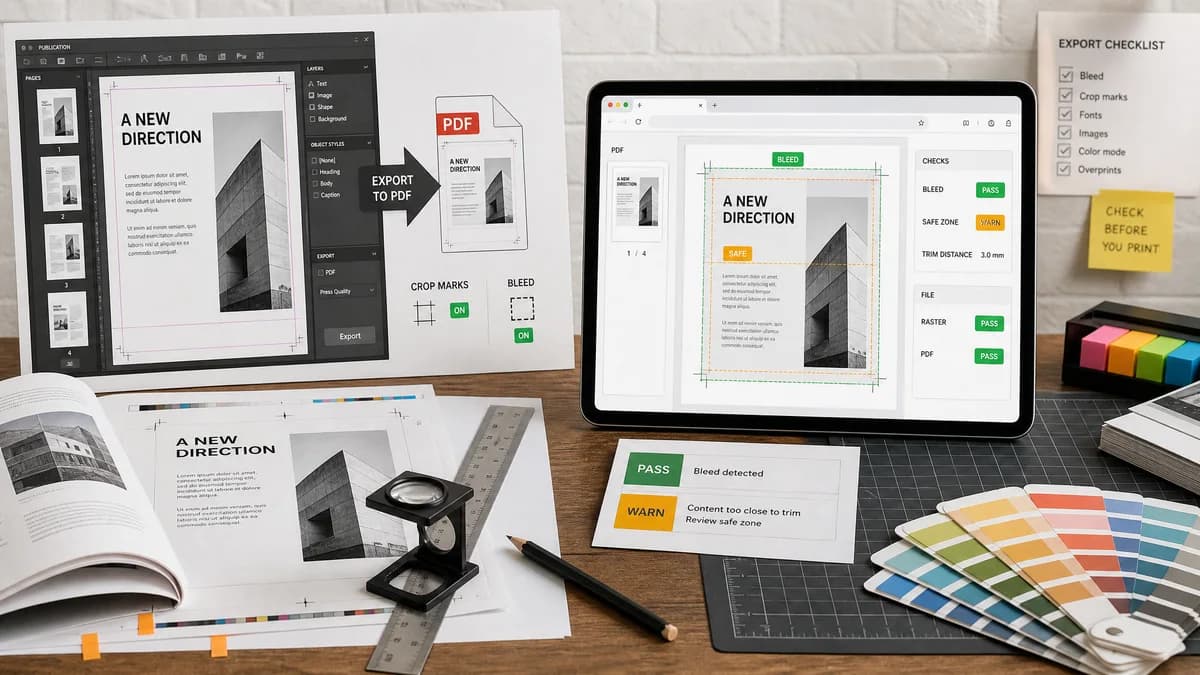
Why Print Bleed Border Checker fits
TextFaker can give InDesign users and non-InDesign users a quick way to validate the exported PDF or raster file. It can check whether document bleed settings made it into the export and whether important content appears too close to trim.
What Adobe InDesign offers
Adobe InDesign is a commercial page-layout application for print and digital materials. Official Adobe guidance explains setting print bleed and exporting PDFs with crop marks and document bleed settings.
Open alternative signals
Runs locally in browser
Print Bleed Border CheckerYes, checks exported files locally.
Adobe InDesignCommercial desktop page-layout application.
Scope
Print Bleed Border CheckerValidation of final page geometry and edge safety.
Adobe InDesignFull document creation and layout production.
Output
Print Bleed Border CheckerNumerical boxes, side measurements, warnings, and annotated preview.
Adobe InDesignExport settings, document guides, and production files.
User type
Print Bleed Border CheckerGeneral print customers, creators, and reviewers.
Adobe InDesignDesigners, publishers, and layout professionals.
Decision guide
Final-file validation for users who receive or export print artwork and need a quick geometry check.
Creating complex multipage layouts, setting document bleed, managing pages, styles, and professional print exports.
Side-by-side open source alternative comparison
| Decision point | Print Bleed Border Checker | Adobe InDesign | Takeaway |
|---|---|---|---|
| Creation versus checking | Our workflowChecks a finished export. | Proprietary workflowCreates and exports the layout. | TextFaker should be positioned as a pre-upload verifier. |
| Bleed failure mode | Our workflowCan flag exports that are trim size only when bleed was expected. | Proprietary workflowRequires correct document and export settings. | The tool catches a common missed-export setting. |
| Safe-zone check | Our workflowComputes safe-zone rectangle and warns about content near edges where detectable. | Proprietary workflowUses layout guides during design. | Final-file checking matters when the original layout file is unavailable. |
| Multi-page support | Our workflowCan summarize page-by-page size and bleed consistency. | Proprietary workflowHandles full multipage layout creation. | Per-page consistency checks are practical and testable. |
| Mobile | Our workflowCan review an exported file from a phone. | Proprietary workflowDesktop layout workflow. | This is useful for non-designers approving artwork. |
| Automated validation | Our workflowTest fixtures can assert exact PDF page boxes and rendered edge checks. | Proprietary workflowDepends on design file setup and export options. | TextFaker can make export QA reproducible. |
Detailed research
Demand Signals
InDesign is a professional tool, but public threads show new users still struggle with print-specific terms. A browser checker can translate those setup choices into a final exported-file result.
- Users ask what bleed and slug are.
- Export instructions warn that bleed must be included at export time.
- Print customers often receive only the final PDF, not the InDesign source.
Implementation Fit
For PDFs, inspect media, trim, bleed, and crop boxes where available, then render pages to check visible edge coverage. For raster exports, compare dimensions against selected print preset and DPI.
- Report each page's size and whether it matches the selected product.
- Warn if page sizes vary unexpectedly.
- Show crop-box and bleed-box overlays in the preview.
Content Guardrail
Do not present TextFaker as a layout replacement. It is a browser-based validation utility for the final artifact.
Test Plan
Use PDFs exported with and without bleed boxes to verify that the parser and renderer produce different validation states.
- PDF with matching bleed box passes box detection.
- PDF with no bleed box but extra pixel area can receive a warning rather than hard fail.
- PDF with inconsistent page sizes reports page indexes.
Research notes
- Official Adobe learning material explains using document bleed settings during PDF export, which implies exported files can miss bleed if settings are not selected.
- A public Adobe Community thread from a new user asks what bleed and slug mean, showing beginner demand for simple explanations.
- A Reddit InDesign discussion also shows users learning bleed and slug concepts in practical print setup.
Official source
The proprietary product link is included once here for source checking after the alternative analysis.
Official Adobe InDesign source